> ## Documentation Index
> Fetch the complete documentation index at: https://docs.directenergypartners.com/llms.txt
> Use this file to discover all available pages before exploring further.
# License
The license is a critical component of the DEP Power Platform. Without a valid license, the platform runtime will not start.
Therefore, it is essential to ensure a valid license is in place before launching the runtime.
## Request License
If you do not have a license, or if your current license is about to expire, contact the Power Platform support team to request a license.
An expired license will cause the Power Platform controller to shut down, leaving the system unusable and uncontrollable.
To avoid downtime, ensure that your license is renewed before it expires.
When requesting a license, you will need to provide the controller **UUID**.
This ensures that the generated license is securely tied to your specific controller and cannot be used on any other device.
### Retrieve Controller UUID
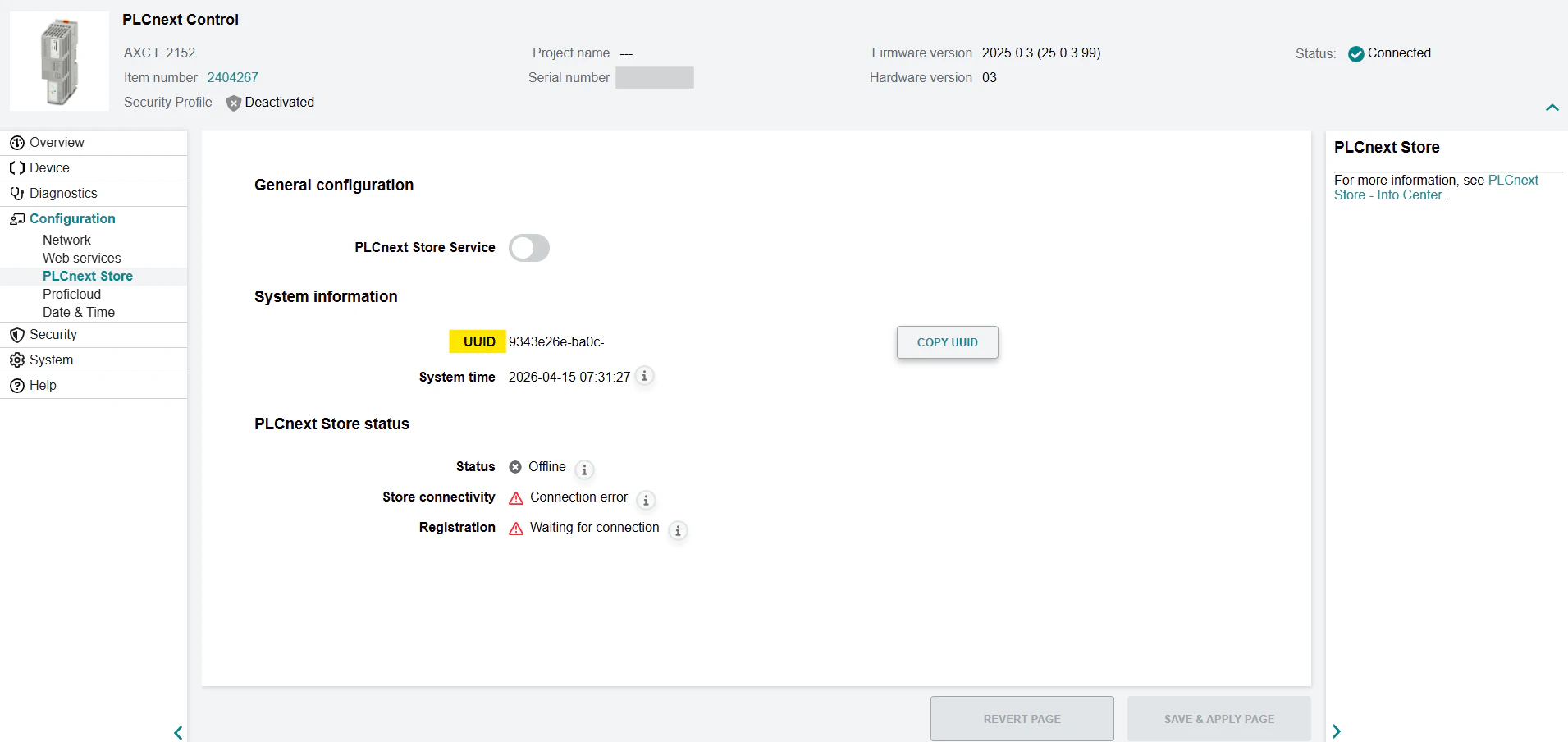
Login to the Web-Based Management (WBM) interface of the Power Platform controller.
Navigate to the **Configuration** tab in the left navigation plane and select **PLCnext Store**.
Copy the controller **UUID** from the PLCnext Store page, under System Information.
 For license requests or updates, please reach out to the support team at [pplsupport@directenergypartners.com](mailto:pplsupport@directenergypartners.com).
Make sure to include the controller **UUID** in your request.
## Upload License File
Once you have obtained a valid license, it must be uploaded to the Power Platform controller to enable the runtime.
The license file is named **license.txt** and must be placed in the following directory on the controller:
```bash theme={null}
/opt/plcnext/appshome/data/60002172000969
```
There are multiple ways to upload the license file:
### Using SCP (Secure Copy)
Open a terminal on your local machine.
Use the scp command to copy the license file to the controller:
```bash theme={null}
scp /path/to/license.txt admin@:/opt/plcnext/appshome/data/60002172000969/
```
For license requests or updates, please reach out to the support team at [pplsupport@directenergypartners.com](mailto:pplsupport@directenergypartners.com).
Make sure to include the controller **UUID** in your request.
## Upload License File
Once you have obtained a valid license, it must be uploaded to the Power Platform controller to enable the runtime.
The license file is named **license.txt** and must be placed in the following directory on the controller:
```bash theme={null}
/opt/plcnext/appshome/data/60002172000969
```
There are multiple ways to upload the license file:
### Using SCP (Secure Copy)
Open a terminal on your local machine.
Use the scp command to copy the license file to the controller:
```bash theme={null}
scp /path/to/license.txt admin@:/opt/plcnext/appshome/data/60002172000969/
```
- Replace **/path/to/license.txt** with the path to your local license file.
- Replace **controller\_ip** with the IP address of your controller.
- Enter the admin password when prompted.
Verify the file has been uploaded by connecting to the controller via SSH and running:
```bash theme={null}
ls -l /opt/plcnext/appshome/data/60002172000969
```
### Using FileZilla
Open FileZilla (or another SFTP client) on your local machine.
Connect to the controller using:
- Host: `controller_ip`
- Username: `admin`
- Password: `admin password`
- Port: `22`
- Navigate on the controller side to: `/opt/plcnext/appshome/data/60002172000969`
- Navigate on your local machine side to the folder containing license.txt.
Drag and drop **license.txt** from your local machine to the controller folder.
Verify the file transfer was successful.
### Other Methods
Any method that allows transferring files over SSH or SFTP (e.g., WinSCP, rsync) can be used, as long as the license ends up in:
`/opt/plcnext/appshome/data/60002172000969`.
## Reboot Controller
After uploading the license, reboot the Power Platform controller to ensure the new license is applied.
### Through WBM
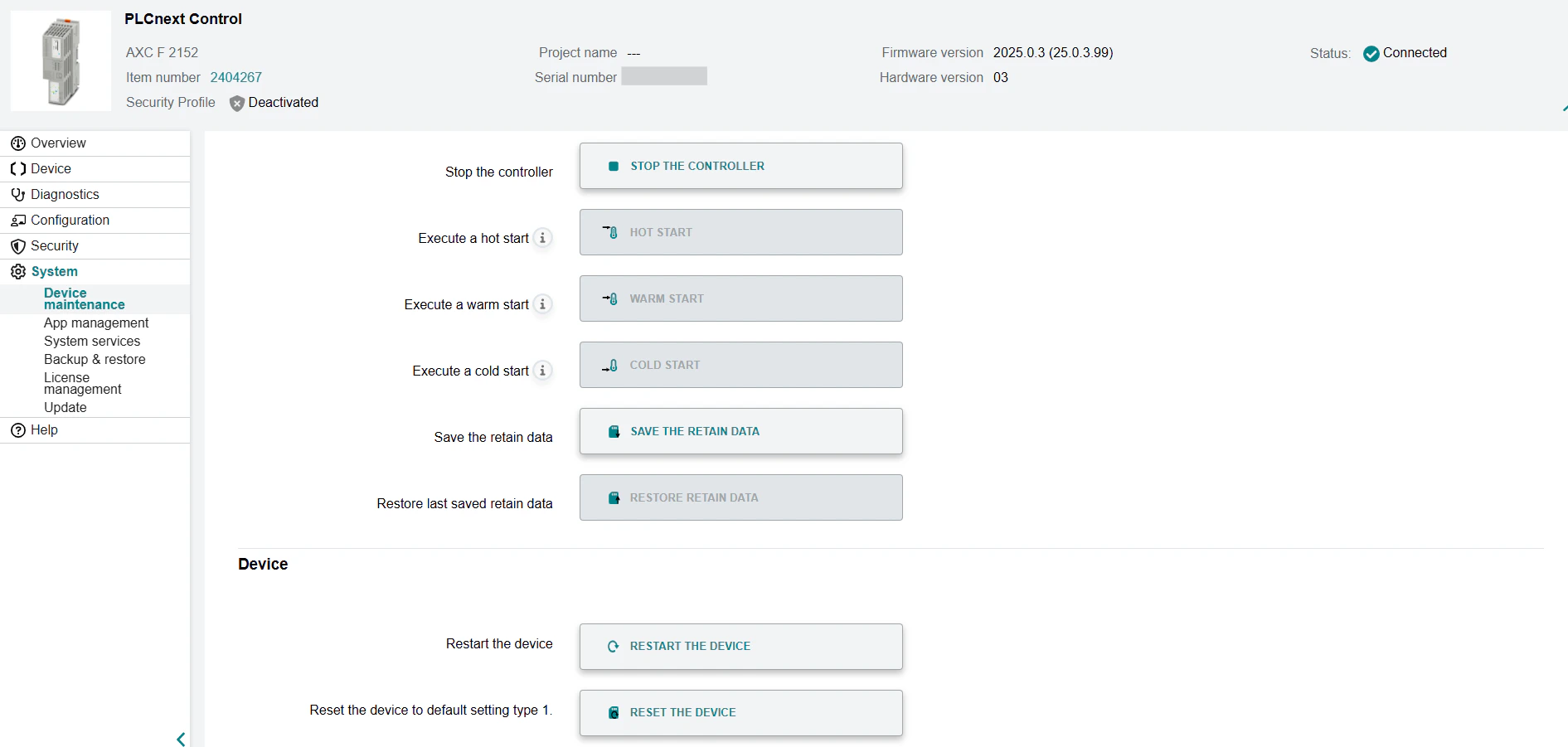
Login to the Web-Based Management (WBM) interface of the Power Platform controller.
Navigate to the **System** tab in the left navigation plane and select **Device Maintenance**.
Click on **Restart The Device** to reboot the controller.
 ### Through Shell Session
Open a terminal on your local machine and connect to the controller using SSH:
```bash theme={null}
ssh admin@
```
Enter the admin password when prompted.
```bash theme={null}
sudo reboot
```
## Verifying the License
After uploading and rebooting the controller, you should verify that the license file has been correctly recognized.
Connect to the controller via SSH through the terminal on your local machine:
```bash theme={null}
ssh admin@
```
```bash theme={null}
cd /opt/plcnext/appshome/data/60002172000969/log
```
Open the license.log file to check for the license status:
```bash theme={null}
nano license.log
```
If the license is valid, the log should contain a message indicating that the license is valid and successfully loaded.
If the log reports an error (e.g., license expired, invalid, or missing), double-check that the file is in the correct location and named license.txt, then reboot the controller again.
If the error persists, contact the support team at [pplsupport@directenergypartners.com](mailto:pplsupport@directenergypartners.com) and provide the **license.log** file for further assistance.
### Through Shell Session
Open a terminal on your local machine and connect to the controller using SSH:
```bash theme={null}
ssh admin@
```
Enter the admin password when prompted.
```bash theme={null}
sudo reboot
```
## Verifying the License
After uploading and rebooting the controller, you should verify that the license file has been correctly recognized.
Connect to the controller via SSH through the terminal on your local machine:
```bash theme={null}
ssh admin@
```
```bash theme={null}
cd /opt/plcnext/appshome/data/60002172000969/log
```
Open the license.log file to check for the license status:
```bash theme={null}
nano license.log
```
If the license is valid, the log should contain a message indicating that the license is valid and successfully loaded.
If the log reports an error (e.g., license expired, invalid, or missing), double-check that the file is in the correct location and named license.txt, then reboot the controller again.
If the error persists, contact the support team at [pplsupport@directenergypartners.com](mailto:pplsupport@directenergypartners.com) and provide the **license.log** file for further assistance.