> ## Documentation Index
> Fetch the complete documentation index at: https://docs.directenergypartners.com/llms.txt
> Use this file to discover all available pages before exploring further.
# Firmware Update
The controller should have the latest firmware, version **2025.0**, running. This section will guide you on checking the
current firmware version and upgrading to the 2025.0 version if needed.
## Check Firmware Version
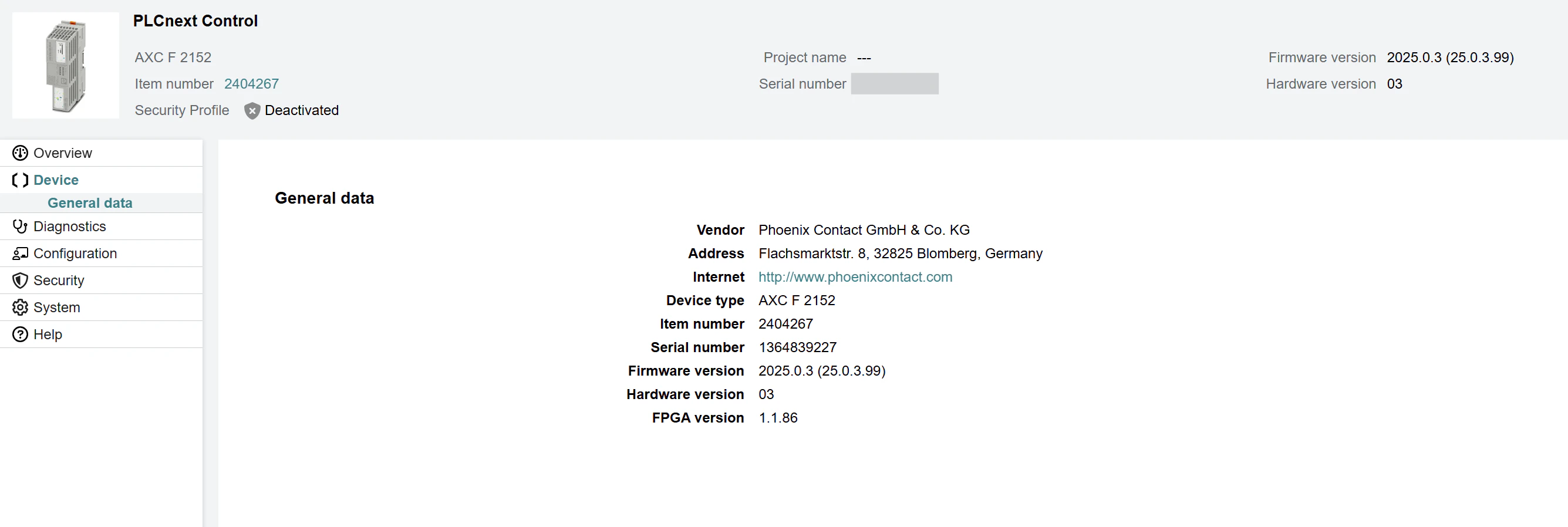
Login to the Web-Based Management (WBM) interface of the Power Platform controller.
Navigate to the **Device** tab in the left navigation plane and select **General Data**.
Check the current firmware version and upgrade to the 2025.0 version if needed.
 ## Upgrade Firmware
There are two possible ways to upgrade the firmware of the Power Platform controller. One way is to use the **Web-Based Management (WBM)** interface and the other way is to use
a **Shell session**. Regardless of the two options to update the firmware version of the controller, you first need to download the firmware from the Phoenix Contact website. For that:
Download the firmware from the Phoenix Contact website.
* Under Firmware, open the Version 2025.0 plane and click on `AXC_F_2152_FW_2025_0.zip` to start the download.
* Extract the ZIP file on your local computer.
### Through WBM (recommended)
Navigate to the **System** tab in the left navigation plane and select **Update**.
For the Firmware, click on the **Update** button.
## Upgrade Firmware
There are two possible ways to upgrade the firmware of the Power Platform controller. One way is to use the **Web-Based Management (WBM)** interface and the other way is to use
a **Shell session**. Regardless of the two options to update the firmware version of the controller, you first need to download the firmware from the Phoenix Contact website. For that:
Download the firmware from the Phoenix Contact website.
* Under Firmware, open the Version 2025.0 plane and click on `AXC_F_2152_FW_2025_0.zip` to start the download.
* Extract the ZIP file on your local computer.
### Through WBM (recommended)
Navigate to the **System** tab in the left navigation plane and select **Update**.
For the Firmware, click on the **Update** button.
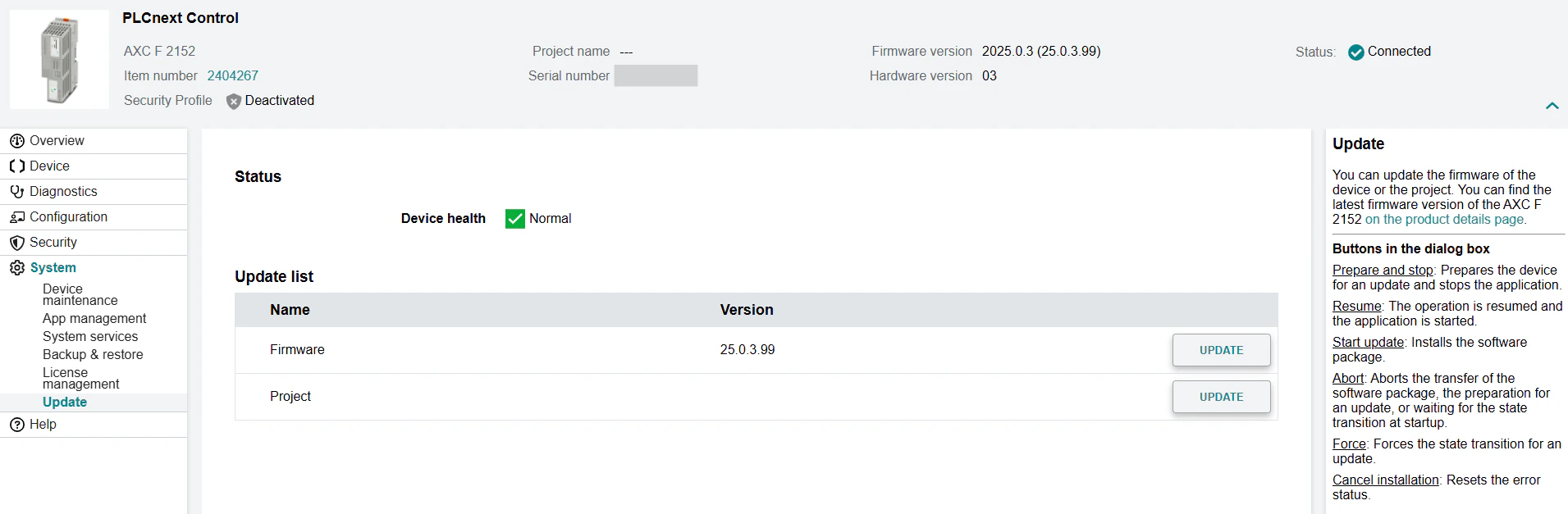 Click the **Prepare and Stop** button. This will stop the application and allows you to upgrade the firmware safely.
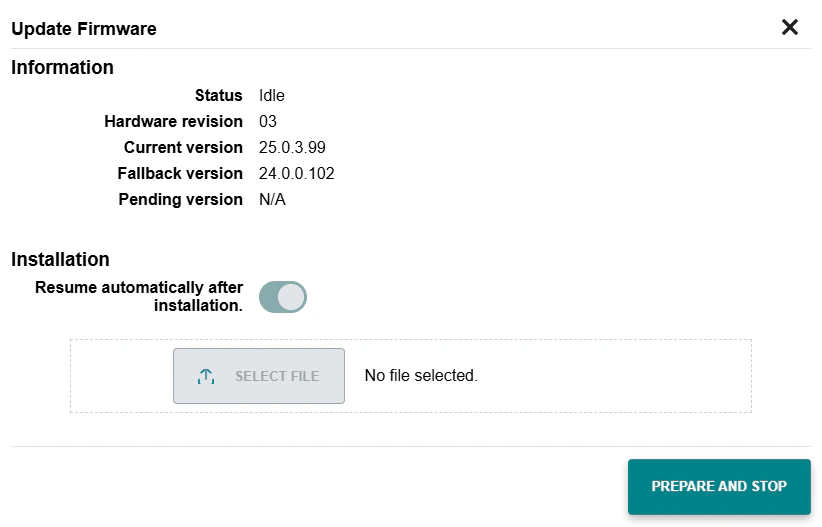 Click on **Select File** and upload the `.raucb` file from the extracted ZIP folder.
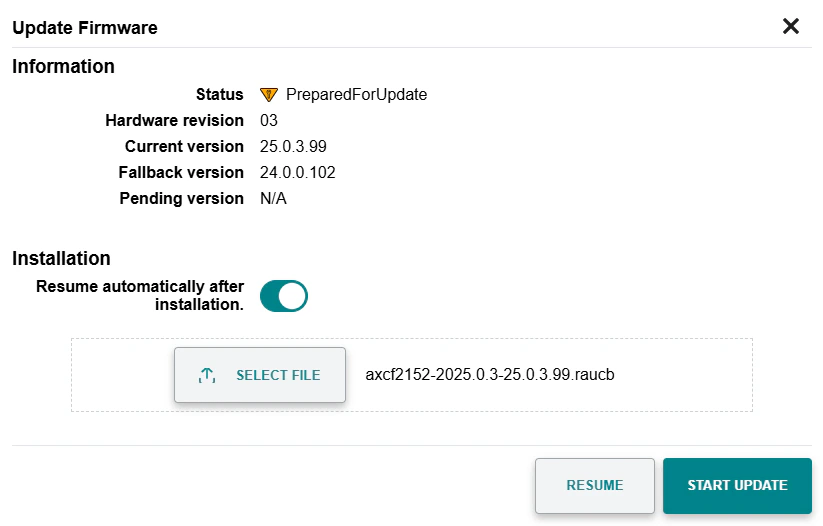
Click on **Start Update** to start the update process. This process can take up to 2-3 minutes. The controller will automatically reboot after the update is complete.
Click on **Select File** and upload the `.raucb` file from the extracted ZIP folder.
Click on **Start Update** to start the update process. This process can take up to 2-3 minutes. The controller will automatically reboot after the update is complete.
 ### Through Shell Session
Copy the `axcf2152-2025.0.3-25.0.3.99.raucb` file from the extracted ZIP archive to the controller using SCP (Secure Copy Protocol):
```bash theme={null}
scp axcf2152-2025.0.3-25.0.3.99.raucb admin@192.168.1.10:~
```
Alternatively, use an FTP (File Transfer Protocol) software such as FileZilla to copy or move the `.raucb` file to the controller.
Open a shell session:
```bash theme={null}
ssh admin@192.168.1.10
```
Enter the default password (printed on the housing of the controller).
```bash theme={null}
sudo /etc/init.d/plcnext stop
```
```bash theme={null}
rauc install axcf2152-2025.0.3-25.0.3.99.raucb
```
```bash theme={null}
sudo reboot
```
Verify in the WBM that the firmware version has been updated to version 2025.0. Please refer to previous section for more information on how to check the current firmware version.
### Through Shell Session
Copy the `axcf2152-2025.0.3-25.0.3.99.raucb` file from the extracted ZIP archive to the controller using SCP (Secure Copy Protocol):
```bash theme={null}
scp axcf2152-2025.0.3-25.0.3.99.raucb admin@192.168.1.10:~
```
Alternatively, use an FTP (File Transfer Protocol) software such as FileZilla to copy or move the `.raucb` file to the controller.
Open a shell session:
```bash theme={null}
ssh admin@192.168.1.10
```
Enter the default password (printed on the housing of the controller).
```bash theme={null}
sudo /etc/init.d/plcnext stop
```
```bash theme={null}
rauc install axcf2152-2025.0.3-25.0.3.99.raucb
```
```bash theme={null}
sudo reboot
```
Verify in the WBM that the firmware version has been updated to version 2025.0. Please refer to previous section for more information on how to check the current firmware version.