> ## Documentation Index
> Fetch the complete documentation index at: https://docs.directenergypartners.com/llms.txt
> Use this file to discover all available pages before exploring further.
# Remote Access
Setting up access for remote support is essential, as it allows Direct Energy Partners to assist with troubleshooting and provide help
during the commissioning process. Follow the steps below to set up access for remote support using TeamViewer or Windows Quick Assist.
### TeamViewer
Open the **TeamViewer** application on your laptop. If you haven't installed TeamViewer yet, you can download it from the TeamViewer website.
Use an Ethernet cable to connect your laptop directly to the Power Platform controller. The connection method varies depending on your Power Platform version:
* **Power Platform Controller:** Connect your laptop directly to the Power Platform controller using any of the two Ethernet ports located at the bottom of the controller.
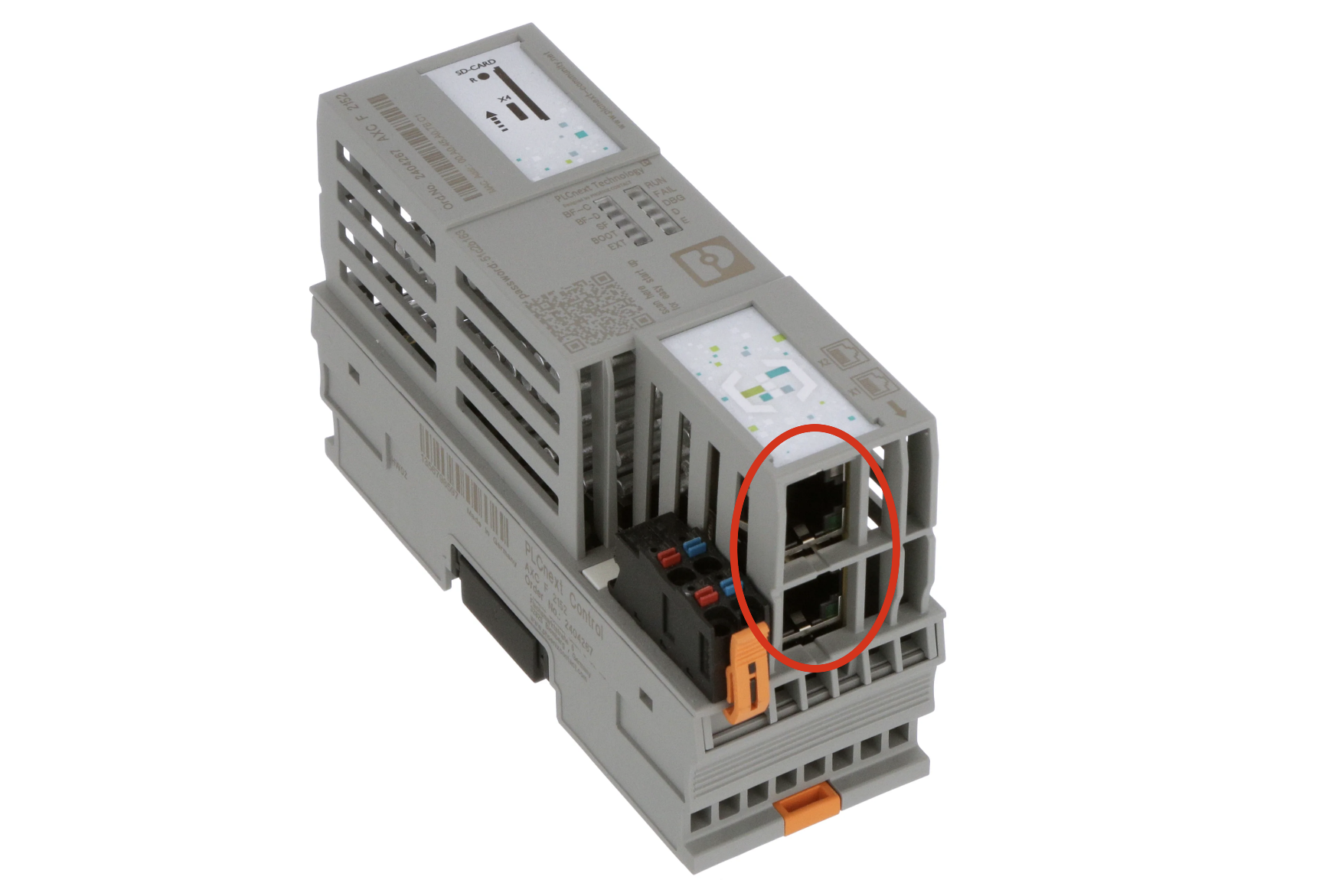 * **Power Platform Panel:** Connect your laptop to the Ethernet connection port at the bottom of the panel. This port is directly connected to the network switch inside the Power Platform panel.
Locate your personal credentials in the TeamViewer application. These credentials include:
* ID: `[9-digit or 10-digit code]`
* Password: \*\*\*\*`[see TeamViewer]`
Send a request for remote support to [pplsupport@directenergypartners.com](mailto:pplsupport@directenergypartners.com) and be sure to include the credentials in the email.
### Windows Quick Assist
To use the built-in Quick Assist application on a Windows computer for remote support, follow these steps. Note that Quick Assist only works on Windows computers.
In the search bar located in the taskbar at the bottom of your screen, type **Quick Assist** and open the application.
Use an Ethernet cable to directly connect your computer to the PPL controller.
Send an email to [pplsupport@directenergypartners.com](mailto:pplsupport@directenergypartners.com) requesting remote support.
The PPL support team will reply with a **6-digit** code.
Enter the provided code into the Quick Assist app and click on **Submit**. A connection will be established between your computer and the PPL support team's computer. This may take a few seconds.
* **Power Platform Panel:** Connect your laptop to the Ethernet connection port at the bottom of the panel. This port is directly connected to the network switch inside the Power Platform panel.
Locate your personal credentials in the TeamViewer application. These credentials include:
* ID: `[9-digit or 10-digit code]`
* Password: \*\*\*\*`[see TeamViewer]`
Send a request for remote support to [pplsupport@directenergypartners.com](mailto:pplsupport@directenergypartners.com) and be sure to include the credentials in the email.
### Windows Quick Assist
To use the built-in Quick Assist application on a Windows computer for remote support, follow these steps. Note that Quick Assist only works on Windows computers.
In the search bar located in the taskbar at the bottom of your screen, type **Quick Assist** and open the application.
Use an Ethernet cable to directly connect your computer to the PPL controller.
Send an email to [pplsupport@directenergypartners.com](mailto:pplsupport@directenergypartners.com) requesting remote support.
The PPL support team will reply with a **6-digit** code.
Enter the provided code into the Quick Assist app and click on **Submit**. A connection will be established between your computer and the PPL support team's computer. This may take a few seconds.
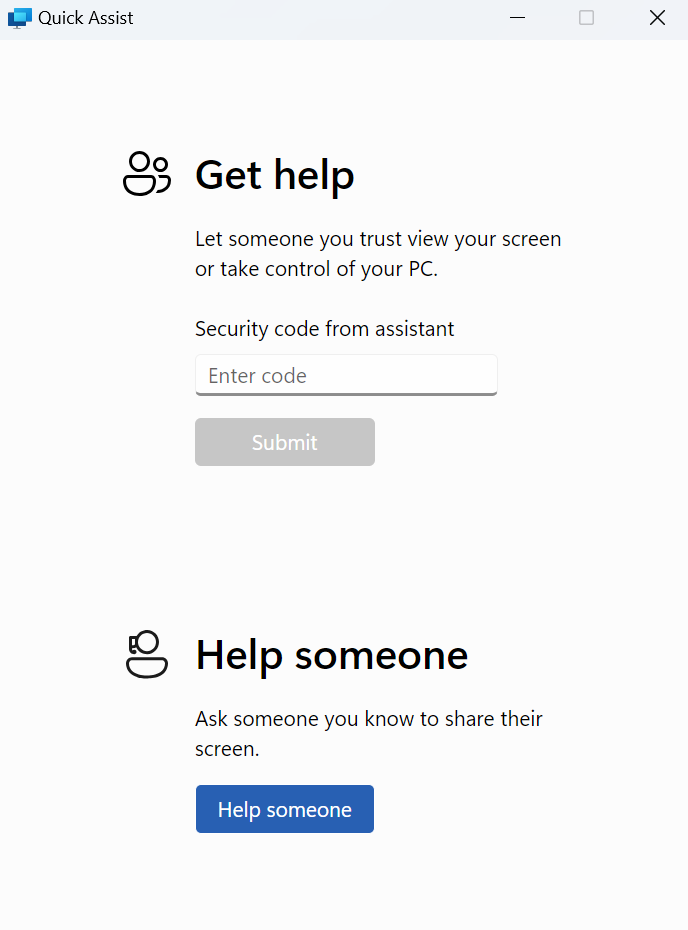 Once the connection is established, the PPL support team will request remote control through the Quick Assist app. Click **Allow Control** in the top bar to grant the support team access to control your computer.
### Additional Information
In the future, other methods to set up remote access may be added. For now, the steps above outline how to set up remote support using TeamViewer and Windows Quick Assist.
Once the connection is established, the PPL support team will request remote control through the Quick Assist app. Click **Allow Control** in the top bar to grant the support team access to control your computer.
### Additional Information
In the future, other methods to set up remote access may be added. For now, the steps above outline how to set up remote support using TeamViewer and Windows Quick Assist.